How to
How to set your hours of operation
The office closes at 4:30 and nobody answers the phone on Saturday, but calls still ring through and a newsletter can go out on a Sunday morning. Hours of Operation tells BasicBMS when you're open. It's one setting with two effects: calls outside your hours go straight to voicemail, and email blasts wait until you open.
Before you start
- Communication is on for your company.
- Your login can change settings. The Save Settings button only shows for a login that can.
- For the call side, your phone number is set up under Credentials & Routing on the same page. Without it the hours still hold email blasts.
Steps
Open Communication → Settings. The page is titled Communications Settings.
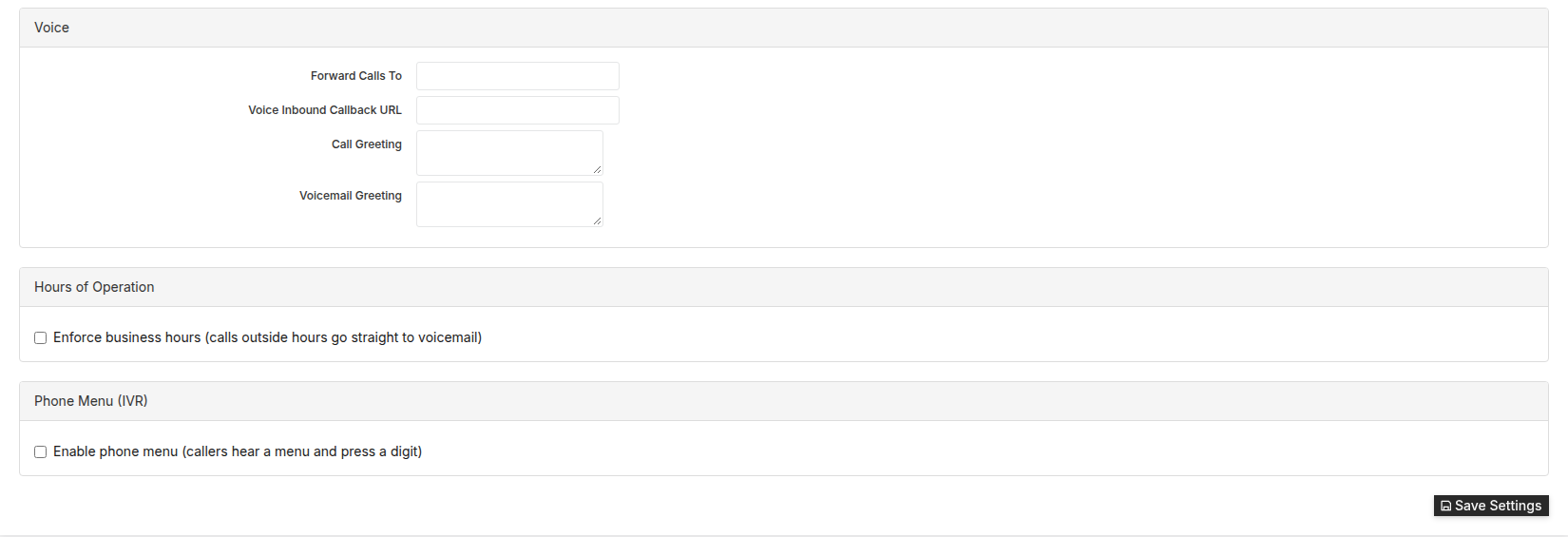
Find the Hours of Operation panel and tick Enforce business hours (calls outside hours go straight to voicemail). The time zone box and a row for each day appear.

Hours of Operation on the Communications Settings page, before Enforce business hours is ticked. Ticking it shows the time zone box and a row for each day. In Time Zone (IANA), type your zone's name, such as
America/Los_Angeles,America/Denver,America/ChicagoorAmerica/New_York. Don't leave it blank: blank means the hours are read in UTC, which puts a Pacific office's 9 a.m. at 1 or 2 in the morning.Every day starts ticked Open, 9:00 to 5:00. Change each day's two times to your hours.
Untick Open on the days you're closed. The row then reads Closed. Saturday and Sunday are ticked by default, so untick them if you don't work weekends.
Click Save Settings.
What changes once it's saved
- Calls. A call outside your hours skips the greeting and the forward and goes to voicemail, with the after-hours greeting if your phone menu has one. During your hours, calls work as before.
- Email blasts. Blast email only sends while you're open. A blast that is still going at closing time picks up at your next open hour, and a closed Saturday and Sunday mean no weekend sends. See how to schedule an email blast.
- Not affected. Invoices, password resets and one-off emails send any time. Text and voice blasts follow the Quiet Hours fields in the Compliance panel, not these hours.
The two go together. There's no way to set hours for email only. If you want weekday-only blasts but calls answered around the clock, leave Enforce business hours off. Blast email then sends Monday to Friday, 8 a.m. to 5 p.m. Pacific, and those times can be changed on their own (the blast guide shows how).
A few details
- A day whose open and close times are the same counts as closed all day.
- A close time earlier than the open time runs overnight: 20:00 to 06:00 is open through the night.
- To turn the hours off, untick Enforce business hours and click Save Settings. Calls are answered at any hour again, and blasts go back to the weekday window.
What posts behind it
Nothing to the ledger. The hours are saved as one company setting, which the phone line and the email queue both read.
When it won’t let you
No changes to save. Nothing on the page changed since it loaded. Edit a field, then save.
The time zone isn't checked when you save. A name the server doesn't recognise makes BasicBMS treat the hours as not set: calls are answered at any hour, and blasts use the weekday window. Copy the name exactly, with the underscore, as in America/Los_Angeles.
What this doesn't do
There's no holiday calendar or one-off closure: closing for a day means unticking it and ticking it again afterwards. One set of hours covers the whole company, not each phone line or mailbox. The hours don't stop invoices or one-off emails, and they don't hold text blasts.
Related
Stuck on this one? Call (509) 955-0770 and we'll walk through it with you.

Business software as unique as your business.
 Water Utility→
 Property Management→
 General Business→
 Construction soon
Don’t see yours? Build a vertical →
