How to
How to file submitted receipts against bills
Receipts arrive from the whole crew, already tagged to the job they were for and with a line on what they bought. Your part is the money: who was paid, when, how much, which account, and which bill the receipt proves. When you are done, the receipt is attached to the bill itself, so “where's the receipt for this?” has a one-click answer.
Before you start
- You have the receiptadmin role. When this shipped it was given to everyone who could already enter bills.
- The vendor is on the vendor list if you want a bill. A vendor name typed as written on the receipt is fine for review, but it can't become a bill until the vendor is picked from the list.
- The expense account exists in the chart of accounts.
Steps
Open Accounting → Receipts. The Submitted tab is your to-do list. Tick Not on a bill to narrow any tab to receipts not yet filed.
Click a receipt. Its pages show on the left (photos large, PDFs inline, Page 2 and so on for more), with who sent it, and the form on the right.
To save typing, click Read receipt. It fills the empty fields from the pages and highlights what it filled. Check every one against the image; nothing is kept until you click Save.
Fill in or correct Vendor (type to search the vendor list), and below it the vendor name as written on the receipt if it differs. Then Date, Paid with (from the company's own list), Total, Tax (incl.) and GL account (type the number or name). Tick Paid personally — reimburse the submitter if it was the employee's own money. Click Save. The receipt moves to Reviewed.
File it:
- It belongs to a bill you already entered: under File against a bill, pick one of that vendor's bills and click Link.
- There is no bill yet: click Create bill from this receipt. BasicBMS saves the form, then enters an open bill for that vendor, dated the receipt date, for the receipt total, with one cost line on the GL account.
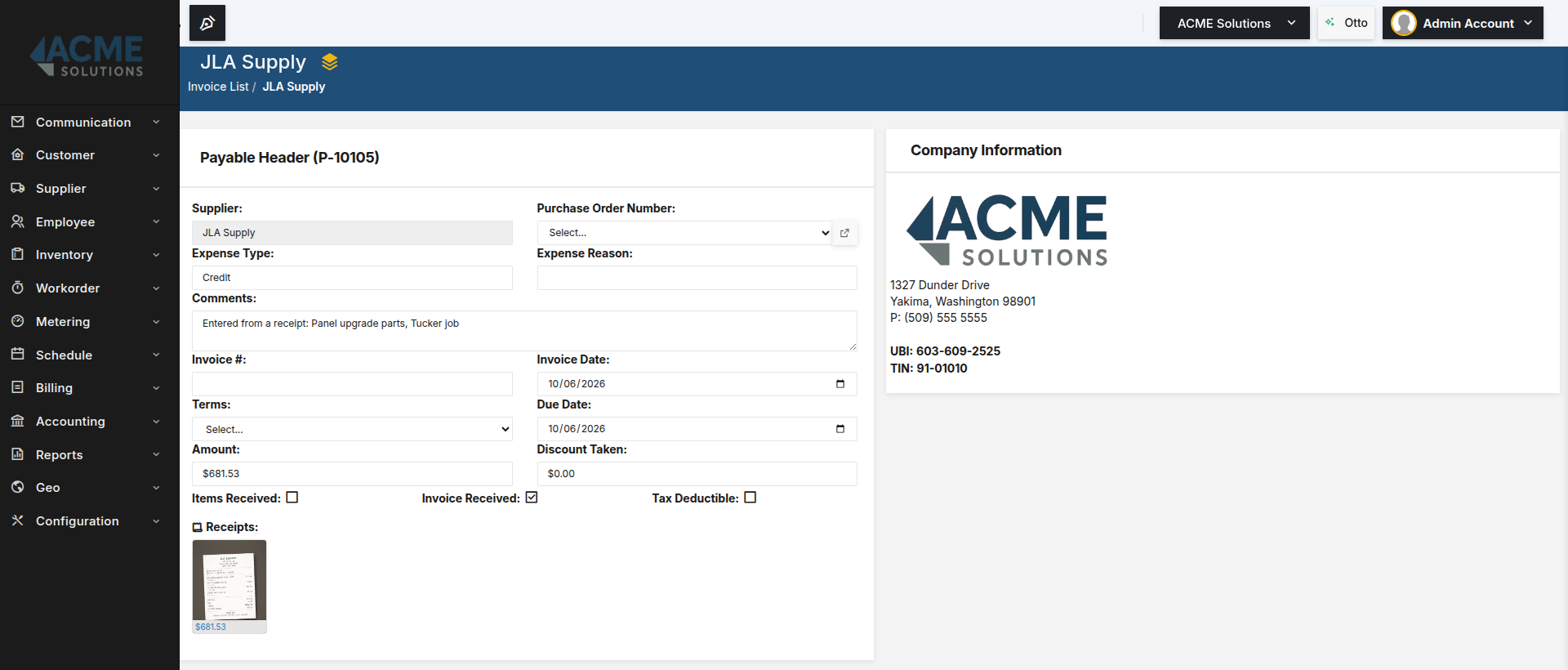
The receipt now shows Filed against bill P-1049, and the bill number links to it. Open the bill: its header has a Receipts strip with the thumbnail.

The receipt lives on the bill it proves, not in a folder next to the books.
Tags the submitter added show as chips and can be corrected here; they are context for you, not accounting. Reject asks for a reason, and the submitter sees it on their list. Unlink takes a receipt off a bill and puts it back to Reviewed.
What posts behind it
Save, Link and Reject post nothing. Create bill from this receipt posts exactly what a hand-entered bill posts, on the receipt date. For a $42.17 receipt coded to repairs:
| Account | Debit | Credit | |
|---|---|---|---|
| DR | The GL account on the receipt (e.g. Repairs and Maintenance) | 42.17 | — |
| CR | Accounts Payable | — | 42.17 |
| Balanced | 42.17 | 42.17 |
The bill is open. Pay it or reconcile it the usual way. If the receipt was paid by card, that is fine: the card payment clears the bill when it comes through bank reconciliation, the same as any other bill paid by card.
When it won’t let you
To create a bill, save the receipt's vendor (from the vendor list), date, amount and GL account first. The message names only what is missing: “save the receipt's GL account first” if that is the one gap.
This receipt is filed against a bill. Unlink it before changing the amount. The amount is what the bill was built from. Unlink, correct it, and file it again.
This receipt is already filed against a bill. Someone (perhaps you, in another tab) already filed it.
This receipt was rejected. Save its details to reopen it first. A rejected receipt can't be linked or turned into a bill. Save reopens it as Reviewed.
Tax cannot be more than the receipt total.
What this doesn’t do
You own the numbers. Read receipt can fill the fields, but vendor, amount and account are yours to check against the image, and nothing on this screen is saved until you click Save.
Filing here does not reconcile anything. It creates or proves the bill; bank reconciliation then clears it. A receipt is not suggested against a bank statement line yet.
Paid personally is a flag, not a payment. Nothing pays the employee back automatically; you do that the way you do now. There are no expense reports, mileage or per-diem, and projects can't be tagged yet.
Related
- How to submit a receipt from your phone — where these come from
- Supplier payables: manual entry, single and batch reconciliation — paying and clearing the bill afterwards
Stuck on this one? Call (509) 955-0770 and we'll walk through it with you.

Business software as unique as your business.
 Water Utility→
 Property Management→
 General Business→
 Construction soon
Don’t see yours? Build a vertical →