How to
How to find and run a report
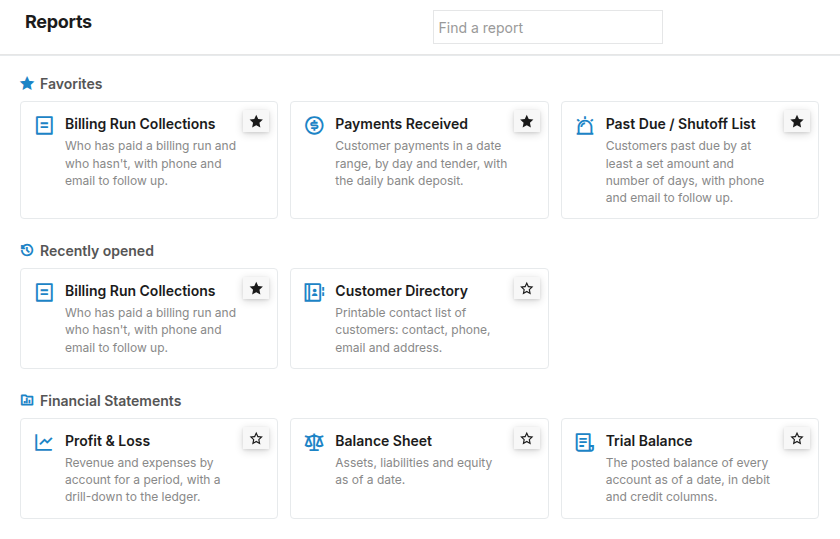
It's the afternoon before the board meeting. Someone wants last month's Profit & Loss, the list of who hasn't paid this quarter, and a printed contact list for the sign-in table. In BasicBMS all of those sit behind one Reports link in the left menu. That screen is a library: every report your login can run, as a card, grouped by what it's for. Find the one you need, set its filters, print it.
Before you start
- Your login has the role each report needs. The accounting and billing reports need the accounting administrator role. Jabber and the work-order time reports follow the access for their own modules.
- A report you don't have the role for doesn't show at all. If a colleague sees a card you don't, that is why.
Steps
Click Reports in the left menu. The cards are grouped into sections, in this order: Financial Statements, Receivables & Payables, Accounting Review, Billing, Sales, Customers and Workorder Time. You only see the sections you have reports in.

Starred reports sit at the top, with the ones opened last under Recently opened. To find one fast, type in Find a report. It matches the report's name, its one-line description and its section, so "deposit", "shutoff", "phone" or "contact" each find the right card. The Clear search button (the x beside the box) brings the full library back.
Click the star on a card to add it to Favorites. Favorites sit at the top of the screen and belong to your login, so they follow you to any computer. Click the star again to remove it.
The reports you opened last show under Recently opened, up to six. That list is kept in this browser only. Favorites and Recently opened both step aside while you are searching.
Click a card to open the report. Each one opens with its defaults filled in: today for an as-of date, the current month for a date range, the latest run for a billing-run report.
Change the filters in the bar across the top (From:, To:, As Of:, Billing Run: and so on, depending on the report) and click the magnifier button to run it again.

Payments Received set to a single day. Change the filters, then click the magnifier button. To print, open the pen icon in the top bar and choose Print. The filter bar and the row buttons drop off the paper; the title, the dates, the totals and the contact details stay. To keep a file instead, pick your browser's save-as-PDF option in the print dialog.

What a printout shows. The top of the first page carries your company name and the time it was printed, like Printed Nov 16, 2026 2:05 PM, so a pile of printouts from two companies still says whose each one is. Switch companies with the company picker and the next printout carries the new name. The foot of every sheet repeats the name and printed time on the left, with Page 1 of 3 on the right; that footer needs a current Chrome or Edge, and other browsers may print the page without it. Customer documents that print your letterhead, such as invoices and quotes, skip both and print as they always have. Payments Received, AR Aging, Customer Account History and Payables Without Receipts print as a compact ledger: one centered title, small ruled rows, the column headings repeated at the top of each page, black links and the totals once after the last row. On AR Aging, an aging column with nothing in it is left blank rather than $0.00, on screen as well as on paper.
Keep a report set up the way you use it. When you run a report, its filters go into the page address. Bookmark that page and the bookmark reopens with the same filters: your shut-off thresholds, one customer's history, a tender. The dates are saved too, so move them forward when you reopen it next month.
What's in the library. Under Financial Statements: Profit & Loss, Balance Sheet, Trial Balance, Activity by Dimension, Budget vs Actual. Under Receivables & Payables: AR Aging, AP Aging, Bills Due, Check / Payment Register. Under Accounting Review: Unposted Items, Sales Tax Collected, Payables Without Receipts, Uncoded Items. Under Billing: Billing Run Collections, Payments Received, Past Due / Shutoff List, Billing Register, Customer Account History. Under Sales: Sales by Customer / Item. Under Customers: Customer Directory, Jabber. Under Workorder Time: Time by Employee, Time by Workorder, Time by Workstation.
By line item, fund or project. Activity by Dimension and Budget vs Actual total revenue and spending by a dimension's codes, such as BARS line items, so they show numbers once your company has a dimension and codes its bills and invoices. See how to read revenue and spending by line item and how to enter the adopted budget and read budget vs actual. Uncoded Items, under Accounting Review beside Unposted Items, lists the bill, invoice and journal lines still missing a code, with the account each sits on; see how to find and fix uncoded entries.
Straight from a customer. On a saved customer's record, the Account History button at the top of the Basic Info box opens Customer Account History for that customer.
Looking for an old menu item? Profit & Loss, the aging reports, Unposted Items, Jabber and the work-order time lists used to have their own menu entries. They live here now, as cards.
What posts behind it
Nothing. Reports read the books; none of them writes a journal entry, changes a bill or marks an account. Starring a card saves only your favorite. A few billing reports let you text a customer or log a call from a row, and those are logged on the customer, not the ledger.
When it won’t let you
There are no reports available to you yet. Your login has none of the roles the reports need. Whoever manages users in your company can add the accounting administrator role, or the role for the module you need.
No reports match "shut off". The search looks for the exact letters you typed in each card's name, description and section. Try fewer words or a different spelling, such as "shutoff" or "past due".
Could not update favorites. The star couldn't be saved, usually because the connection dropped. The star flips back to how it was; click it again.
What this doesn't do
There is no report builder. You can't add a column, change a layout or design your own report from this screen. Reports don't email themselves on a schedule, and there's no spreadsheet download on the report screens; print, or save to PDF from the print dialog. Favorites are per person, not shared across the office.
Related
- How to see who has paid a billing run — the report most offices open first after a billing run
- How to print a past-due and shut-off list — the list to work before a shut-off round
- How to search a list and save the search — the same idea on customer, invoice and other lists
Stuck on this one? Call (509) 955-0770 and we'll walk through it with you.

Business software as unique as your business.
 Water Utility→
 Property Management→
 General Business→
 Construction soon
Don’t see yours? Build a vertical →
