How to
How to print a customer contact list
Before the annual meeting you want a printed list of every member with a contact name, phone, email and address. Or the operator heading out on a main break wants every customer's phone number on paper, not on a screen back at the office. Customer Directory is that list: one line per customer, sorted by name, with buttons to call, text or log a note while you have it open.
Before you start
- Your customers have their contacts, phones and addresses filled in. The directory shows what's on file and nothing more.
- Your login has the accounting administrator role, the same as the billing reports.
- To text from the list, you need the communications administrator role and a texting number set up for your company.
Steps
Open Reports and, under Customers, click Customer Directory. It opens on every active customer.
To narrow it, type part of a name or an account number in Search:, then press Enter or click the magnifier button.
To bring in customers you've switched off, tick Include inactive and run it again. A Status column appears, reading Active or Inactive.
Check the header. It reads like
59 customers · active only · Oct 26, 2026, with your search text added when you used one. The date is the day you print it.
30 active customers, sorted by name, with contact, phone, email and address. Read the columns: Customer with the account number under it, Contact, Phone, Email and Address.
To print, open the pen icon in the top bar and choose Print. The row buttons drop off the paper.
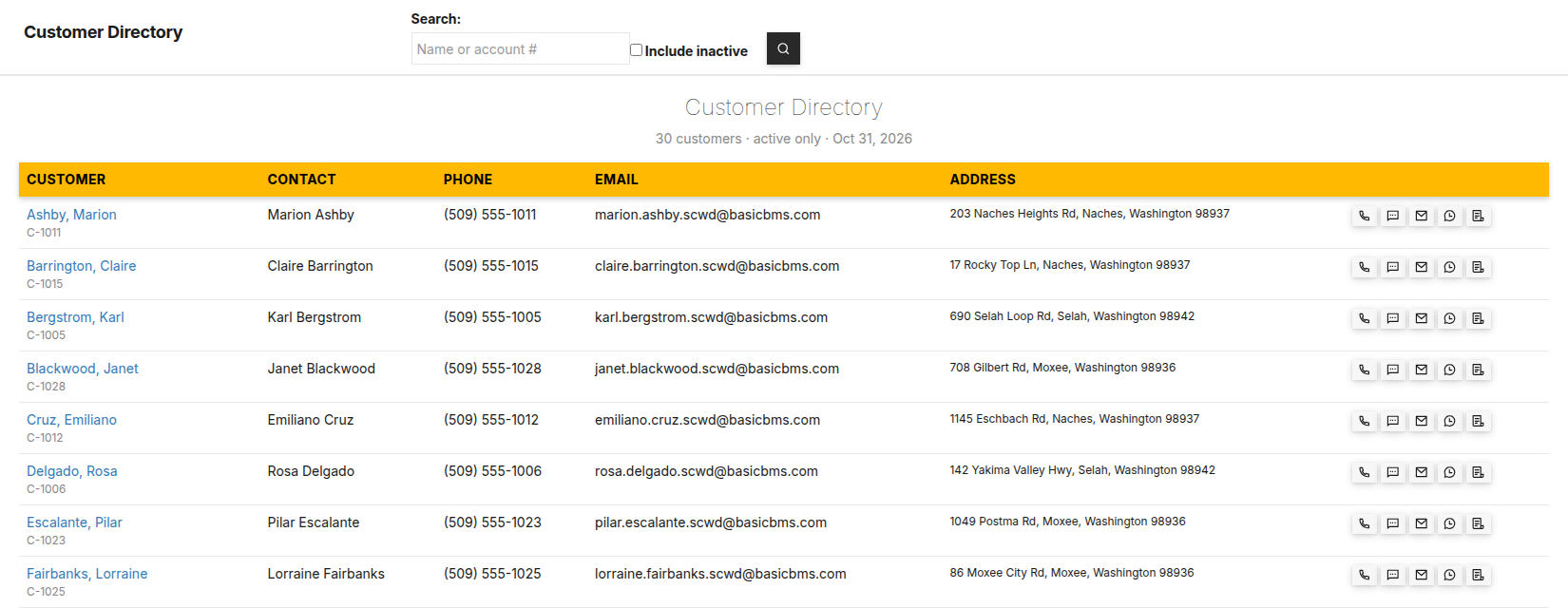
The row buttons (on screen only):
- Call opens the phone dialer on a device that can make calls.
- Send a text opens with
Hiand the contact's name for you to finish. Click Send; the text is logged on the customer's communication history. The button only shows for a valid US number. - Email opens your own email program, addressed to the customer. BasicBMS doesn't send or log that one.
- Log Jabber records a call or note on the customer. Add a Title or Notes, set Follow up on if you want a reminder, and click Save.
- Account history opens Customer Account History for that customer.
Which details it picks. Contact is the customer's only contact, else the one marked primary, else the first. Phone is the customer's mobile number, else their primary number, else any number on the customer, else the contact's. Email is the customer's primary email, else the contact's. Address is the primary address, on one line. The email here can differ from where invoices go, because invoices use the bill's Bill To email first.
Who counts as inactive. Only a customer whose Active setting is turned off. A customer that was never marked either way counts as active.
What posts behind it
Nothing. The directory reads customer records. Texts and Jabber entries are logged on the customer, not the ledger.
When it won’t let you
No customers match. The search matched nobody. It looks at the customer's name and account number only, not the contact's name or the address. Inactive customers only match when Include inactive is ticked.
What this doesn't do
It doesn't print mailing labels or envelopes. There's no spreadsheet download; print, or save to PDF from the print dialog. And it can't filter by service area, rate or customer type; it's everyone, or a name search.
Related
- How to add a customer — where the contact, phone and address on this list come from
- How to print a customer's account history — one click from any row
- How to search a list and save the search — for narrower lists on the customer screen
Stuck on this one? Call (509) 955-0770 and we'll walk through it with you.

Business software as unique as your business.
 Water Utility→
 Property Management→
 General Business→
 Construction soon
Don’t see yours? Build a vertical →
