How to
How to check what a billing run billed
The quarterly bills went out on the 1st. Before they post, or when the board asks what you billed this quarter, you want one page: how much of each rate was billed, which revenue account it lands in, and proof that the lines add up to the bills. Billing Register gives you that for one billing run, or for any range of invoice dates.
Before you start
- To check a run, your bills came from recurring billing. For anything else, use a date range.
- Your items have a GL Sales account, or your company has a default sales account. A line with neither shows as
(Uncoded). - Your login has the accounting administrator role.
Steps
Open Reports → Billing → Billing Register. It opens on By invoice date for the current month, not on the latest run.
To check a run, pick it in Billing Run:, such as
Oct 1, 2026 — 56 bills. The date fields go away.Or leave By invoice date and set From: and To:.
Click the magnifier button.

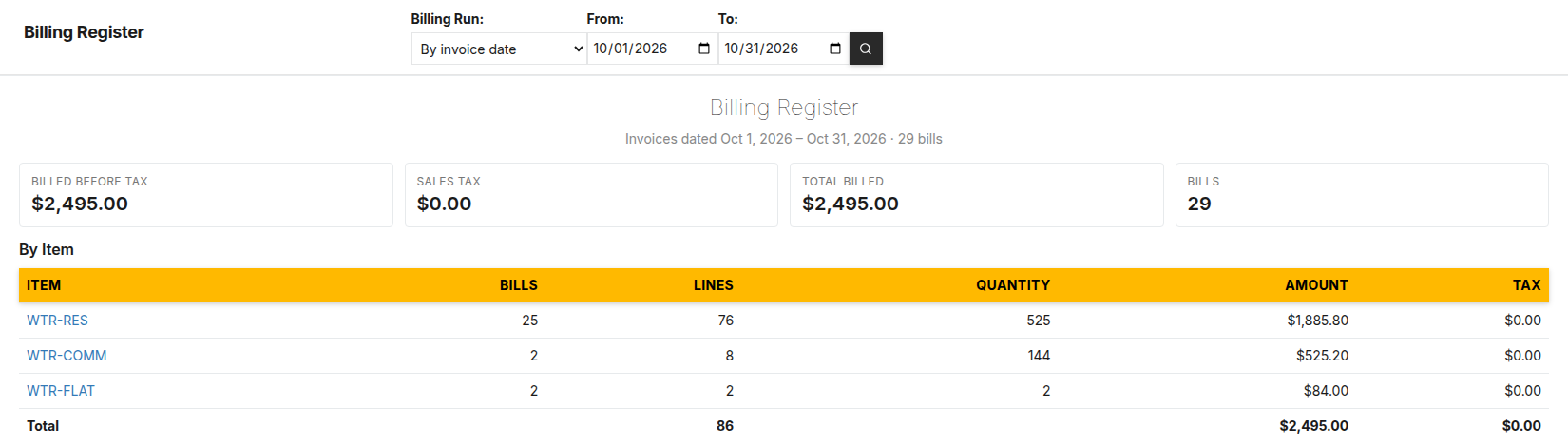
Invoices dated in October: 29 bills, $2,495.00 billed, one row per rate, largest first. Check the header. It names the run or the dates and the number of bills, and adds how many are not yet posted, for example
Billing run of Oct 1, 2026 · 56 bills (12 not yet posted).Read the tiles: Billed Before Tax, Sales Tax, Total Billed and Bills.
Read By Item: one row per rate or item, with Bills, Lines, Quantity, Amount and Tax, largest first. A line with no item shows its own description and
(no item), so a hand-typed adjustment stands out.Read By Revenue Account: each account the lines will credit, with Lines and Amount, then a Sales tax row.

The lines and the bills' own totals both come to $2,495.00, so the difference reads Ties out. Check the footer. Total billed is the sum of the lines. Bills' own totals (Retail + Tax) is the sum of the bills' totals. Difference should be zero, labelled
Ties out.For the board packet, open the pen icon in the top bar and choose Print.

Which revenue account. It's the account posting will credit: the account coded on the line, else the item's GL Sales account, else your company's default sales account. A line that resolves to none shows (Uncoded) in red. Fix the item or the default before you post.
Lines recognized over time. A line set to recognize revenue month by month posts to Deferred Revenue first, so that's where the register shows it. A note under the table gives the amount and says it is released monthly through Accounting → Deferrals.
What's included. Unposted bills are included; checking before posting is the point. A billing run here is the same run Billing Run Collections and the Billing → Print tab use. Recurring billing templates are never counted.
What posts behind it
Nothing posts from this report. It shows what posting will do: each By Revenue Account row is a credit to that account, and the Sales tax row is the credit to sales tax. Post the bills the usual way when the register looks right.
When it won’t let you
No bills found for this selection. The run or date range has no bills. If you meant a run, check that you picked one: the screen opens on By invoice date for the current month.
Does not tie Shown in red in the footer when the lines don't add up to the bills' own totals. Don't post until you know which bill is off; the Difference row tells you by how much.
(Uncoded) A line has no revenue account from any of the three places. Give the item a GL Sales account, or set your company's default sales account, and run the register again.
What this doesn't do
It doesn't post the run. It doesn't list bills customer by customer; Billing Run Collections does that. And it doesn't compare one quarter with the last; run it for each and set the pages side by side.
Related
- How to see who has paid a billing run — the same run, bill by bill
- How to set up a water rate with a base charge and usage tiers — where the rate items on the register come from
- How to print a billing run for mailing — the bills themselves, as one PDF
Stuck on this one? Call (509) 955-0770 and we'll walk through it with you.

Business software as unique as your business.
 Water Utility→
 Property Management→
 General Business→
 Construction soon
Don’t see yours? Build a vertical →
