How to
How to print a billing run for mailing
Quarter-end at a small water association: fifty-odd members, fifty-odd bills, fifty-odd window envelopes, and the person doing it also has a day job. Recurring billing already made the invoices. This prints the whole run to one PDF, in mailing order, so it is one print job, one stack, fold and stuff.
Before you start
- The run's invoices exist. Recurring billing has generated them; they show on the Billing tab with an invoice number, not “not generated”.
- The invoice looks right on screen. The print is the same page you see when you open the invoice, so the address lands in the envelope window only if your invoice layout already puts it there. Printing will not fix a layout that is wrong on screen.
- Each customer's Invoice delivery is set, or left alone. Untouched customers count as Paper, so the first print run includes everyone with no setup. See Paper or email below.
- Your role. Anyone with invoice access sees the Print tab and can download. Print, Cancel, Retry failed and Delete need invoice administrator.
Steps
Open Billing → Dashboard and click the Print tab.
Under Billing runs, find the Run date and click Preview. The Printed column shows how many of the run's invoices have been printed before, as printed / total.
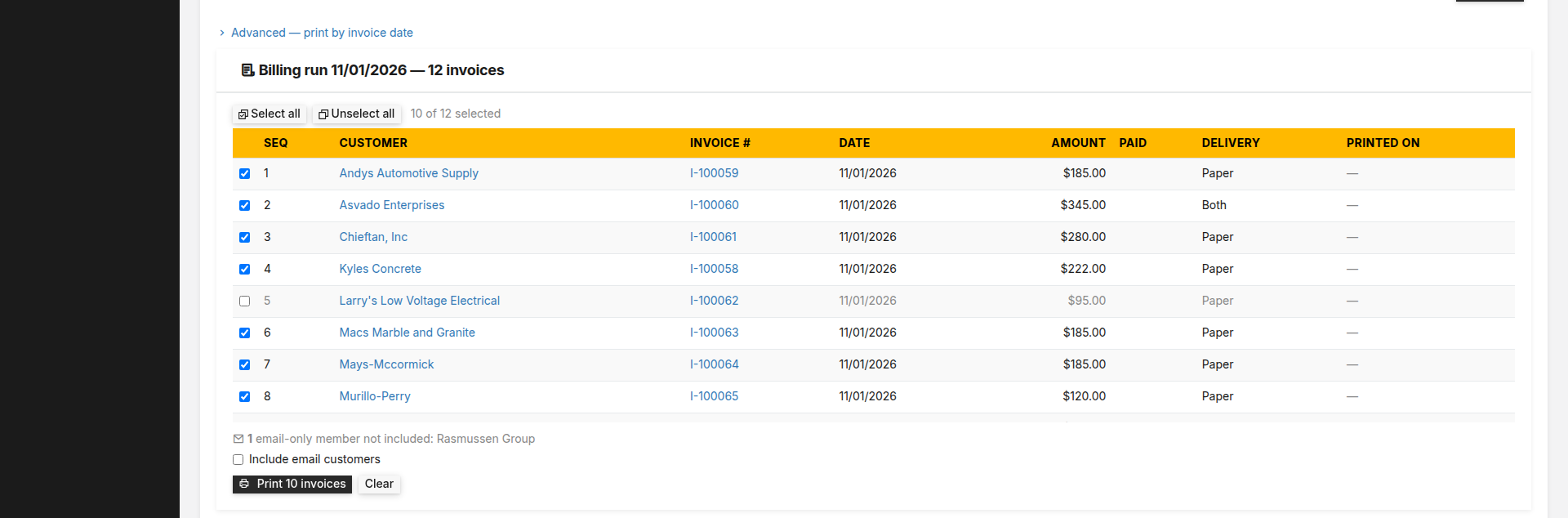
Read the preview. One row per invoice, numbered under Seq in mailing order — sorted by the billing name on the invoice, which is not always the last name. Columns: Customer, Invoice #, Date, Amount (the invoice total, not what is still owed), Paid, Delivery and Printed on.

The run before it prints. Untick anyone you are holding back; email-only members are named underneath, not silently dropped. Check the line under the table. Customers set to Email are left out and named there: “2 email-only members not included: …”. To print them anyway this time, tick Include email customers; the preview rebuilds with them in.
Every row starts ticked. Untick anyone you are holding back — a bill with a question on it. Select all and Unselect all are above the table, with a running “n of N selected”.
Click Print N invoices (it counts the ticked rows) and confirm: “Print all 57 invoices to one PDF?”, or “Print 52 of 57 invoices to one PDF?” if you unticked some.
Watch Print batches. The batch shows Queued, then Rendering with a progress bar and a rendered / total count that moves on its own. Expect a few minutes for a run of fifty-odd. You can leave the page and come back.

Rendering runs in the background. The finished batch below it is one file, ready to download. When the status reads Ready, the Pages / size column fills in. Click Download. The file is named
Invoices_Billing-run-._ .pdf Print single-sided, at 100% scale — turn off “fit to page”. Each invoice starts on a fresh page and the file carries no blank pages, so on a duplex printer a one-page bill would get the next member's bill on its back.
Fold and stuff. If the layout was set up for your envelopes, the address shows through the window.

Reprinting is deliberate. Preview the same run again and Printed on is filled in for everything that went out. If any ticked row was printed before, the confirm changes to: “3 of the 5 selected were already printed — print all 5 again? A reprint is deliberate; it stamps a new printed date.”
Not a recurring-billing run? Open Advanced — print by invoice date under the runs table. Set Start and End, optionally a Style, Unpaid only, and Not yet printed (ticked by default), then Preview. From there it is steps 3 to 10. The batch is labelled Date range.
From the Billing tab instead. Each row on the Billing tab has a Send as that starts at the customer's Invoice delivery and can be changed for that run only (Paper, Email, Both, or None — generate it, send nothing). Select rows and click Process: the Email and Both rows are emailed, and the Paper and Both rows go into one print batch — “Print batch queued: 12 invoice(s). Download it from the Print tab.”
Paper or email
Each customer record has an Invoice delivery setting: Paper, Email or Both. A customer nobody has touched counts as Paper. Customers set to Email are left out of a print run and named in the preview, so nobody disappears silently. Customers set to Paper are not emailed by recurring billing, even when it charges a card on file. Members who use the member portal can change it themselves under Preferences → Send my bill by; it is the same setting.
What posts behind it
Nothing. The invoices posted when recurring billing created them. What is recorded is the paper: each batch (who printed what, when, how many pages) and a Printed on date on each invoice.
When it won’t let you
A print batch is already running for this company. Wait for it to finish or cancel it first. One batch at a time per company, by design. Wait for Ready, or Cancel the running one.
No invoices match the selection. No invoices to print — 3 matched but every customer receives invoices by email. The run is empty, or every customer in it is set to Email. Tick Include email customers to print them anyway.
Print batch is Rendering. Cancel it before deleting. Delete works only on a finished batch. Invoices that only that batch printed go back to not printed, so a test print leaves no trace.
Nothing failed in that batch. Retry failed on a batch with no failures.
2 payment link(s) could not be created; those invoices printed without a QR code. A warning on a Ready batch, under Details. If Stripe is not active for the company, no payment code prints at all and no warning is shown.
A batch can also finish Ready — 3 failed: the PDF exists without those invoices, and Details shows which and why. Retry failed prints just those as a new batch, marked Retry. A batch where nothing rendered shows Failed with the reason.
Files are kept 30 days. After that Download is replaced by File expired and the date; print the run again for a fresh file. The batch record stays.
What this doesn’t do
It does not mail anything. The output is a PDF you print, fold and stuff; nothing is posted or sent to a print house. It does not move the address — the invoice layout does, and the print run prints exactly what is on screen. There is no duplex setting on this screen. It prints invoices only: not statements, quotes or work orders. And it runs one batch at a time per company.
Related
- How to accept Zelle® on your invoices — the payment block that prints on each bill
- What "balance forward" means on a BasicBMS bill — the account summary the member reads on paper
Stuck on this one? Call (509) 955-0770 and we'll walk through it with you.

Business software as unique as your business.
 Water Utility→
 Property Management→
 General Business→
 Construction soon
Don’t see yours? Build a vertical →