How to
How to set up late fees on recurring bills
A member's bill was due on the 25th and the check showed up on the 2nd. Your policy says that costs ten percent, and until now somebody had to notice, work out the amount, and key a separate invoice for it. This sets the policy once. From then on, when the next recurring bill is generated, any bill that was paid after its due date gets a Late Fee line added to it — with the amount, the bill it is for, and how much was unpaid on the due date.
Before you start
- The customers are on recurring billing. The fee is added when their next bill is generated; a customer with no schedule is never charged one.
- GL Defaults has a Late Fee Income account. Without one, no fee is added, and the Late Fees tab says so in a banner at the top.
- You decide a start date. Only bills due on or after it can be charged, so switching this on never reaches back into old lateness.
- You are a billing administrator. Everyone else can read the tab but not save it.
Steps
Open Billing → Dashboard and click the Late Fees tab.
Tick Charge late fees and set the Start date.
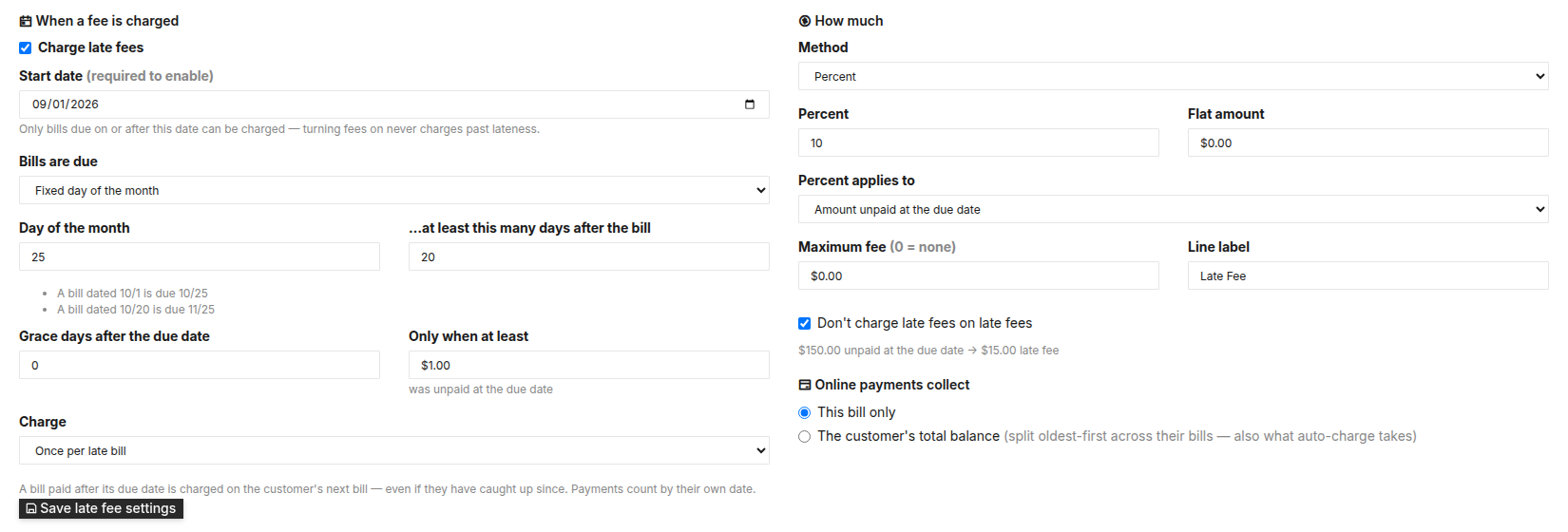
Under Bills are due, choose Fixed day of the month and enter the day — 25, say. In …at least this many days after the bill, enter 20. Two example lines under the fields show the result: a bill dated the 1st is due the 25th; a bill dated the 20th is due the 25th of the next month. A bill that goes out late never gets a five-day window. If you would rather count days, choose Days after the bill date instead.

The whole policy on one screen. The two lines under the due-date rule show what it does to a bill sent on the 1st and one sent late on the 20th. Set Grace days after the due date if payments get a few extra days, and Only when at least to skip pennies left over on a bill.
Under Charge, choose Once per late bill or Every bill while it stays unpaid.
Set the amount: Method (Percent, Flat amount or Greater of the two), Percent and/or Flat amount, what Percent applies to (Amount unpaid at the due date or The bill's total), and a Maximum fee if there is a cap. Leave Don't charge late fees on late fees ticked. The line under it shows the math on a $150 bill.
Click Save late fee settings. Then set a Bill date under Preview the next run and click Preview. The table lists every customer who would be charged, the bill that was late, what was unpaid on its due date, what they owe now, and the fee. Nothing is charged by previewing.

The first row is paid in full today and still gets a fee — it was paid after its due date. To exempt one customer, open their record and set Late fees to Exempt. Everyone else stays Charge.

Two rules decide who appears in that preview, and both surprise people the first time:
- Paid late but caught up still counts. The fee is for paying late, not for owing now. A bill due the 25th and paid on the 2nd is charged on the next bill even though the balance is zero.
- A payment counts on its own date, not the day it was typed in. A check dated the 24th and entered on the 3rd is on time.
What posts behind it
The fee is an ordinary line on the new bill, so it posts with that bill — one entry, the fee as one more credit beside the regular charges. On a $150 bill carrying a $15 fee:
| Account | Debit | Credit | |
|---|---|---|---|
| DR | Accounts Receivable | 165.00 | — |
| CR | Sales (the bill's regular revenue account) | — | 150.00 |
| CR | Late Fee Income | — | 15.00 |
| Balanced | 165.00 | 165.00 |
The late bill itself is not touched. It stays open, ages on the AR aging report like any other bill, and is paid off on its own.
When it won’t let you
A start date is required when late fees are enabled — it keeps fees off invoices that were already late. You ticked Charge late fees without a Start date. Pick the first due date you want the policy to apply to.
Enabled late fees need an amount: set the flat amount and/or the percent the method uses. The Method points at a field that is still zero — Percent with no percent, for example.
Percent must be between 0 and 100.
Late fees need a Late Fee Income account in GL Defaults (Company settings). None is set, so no fee will be added even when enabled. This one is a banner, not a refusal: the settings save, but no fee is added until Late Fee Income is set in GL Defaults.
What this doesn’t do
It does not send reminders or shut-off notices, and it does not add reconnect fees. It charges nothing between bills — the fee waits for the customer's next recurring bill, so on a quarterly cycle that can be two months after the due date. Customers billed by hand are never charged automatically. And it never closes or moves the late bill; the new bill shows what is still owed on it in its account summary.
Related
- How to waive a late fee — taking one back off a bill
- What "balance forward" means on a BasicBMS bill — why the old bill stays open and how the total due is worked out
Stuck on this one? Call (509) 949-2162 and we'll walk through it with you.

Business software as unique as your business.
 Water Utility→
 Property Management→
 General Business→
 Construction soon
Don’t see yours? Build a vertical →